On Monday morning, I asked Claude to help me build a place on my laptop that Claude can't get into.
My AI setup can reach almost everything now: my files, my mail, my calendar, and the AI helpers that run on a second computer. A while ago I signed an agreement with a client that says no outside AI tool touches their material. That morning I saw that my setup and that promise no longer fit together. It surprised me that I had gone this many months without running into it.
So for this one piece of work I'm back to the old way. I type my notes by hand in a plain text editor, and I draft nothing for this client with AI. I plan my projects around how fast I work with AI, and typing by hand doesn't fit in the hours I've already promised.
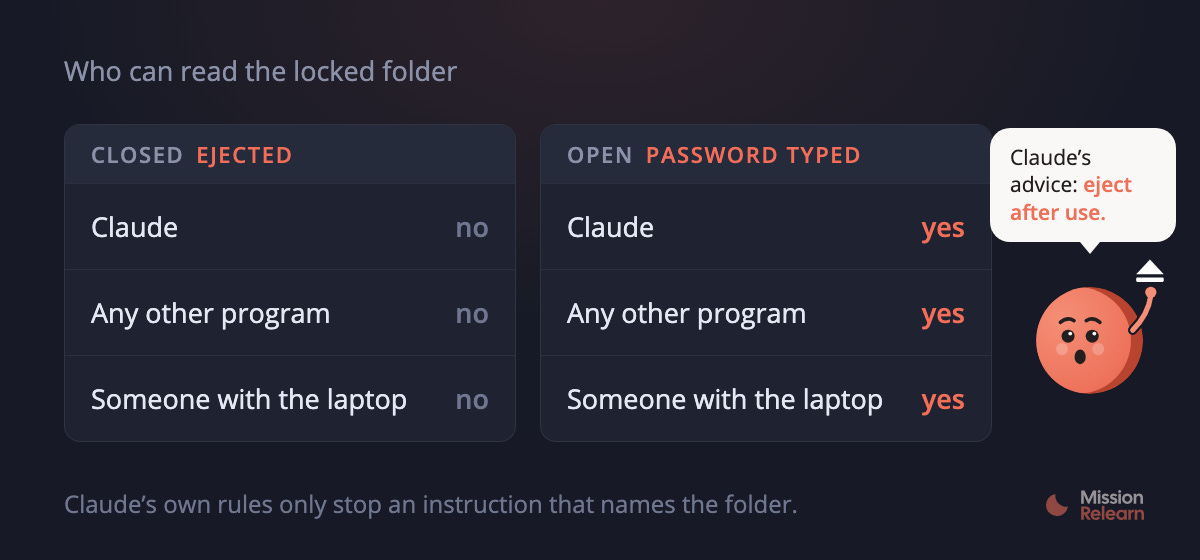
For the files, I made a locked folder. On a Mac, that's an encrypted disk image, a file that opens like a USB stick when you type its password and disappears again when you eject it. I set it up myself in Disk Utility, so the password never passed through Claude, and I kept the password out of the keychain, the Mac's built-in password store.
Then Claude added rules to its settings that stop it from reading the folder or opening it by name. Claude tested one, and the rule blocked it at once. Claude also told me the rules are only a safety net: an instruction that doesn't mention the folder's name gets through. Its own words: "The real wall is and remains: eject after use." While the folder is open, any program on my laptop can read it, Claude included.
I hadn't expected my protection to depend on me closing a folder. Claude spotted the gap in its own rules in the same conversation, and I expect every new model to get better at that. So I keep checking the safety net, and I delete this client's files once a job is done, even the ones I'd normally keep for reference.
My mail got its own rule. The tool that reads my inbox for Claude now skips every mail to or from this client's address, and it checks the address before it opens anything. The first test skipped 58 emails and let the rest through.
You can make a locked folder for your own sensitive files: a client's material, HR files, anything you promised to keep away from AI.
First check that your whole laptop is encrypted. On a Mac: System Settings > Privacy & Security > FileVault. On Windows 11: Settings > Privacy & security > Device encryption. If it's off, turn it on. Don't see that option? Search Settings for BitLocker (it comes with Windows Pro), or ask whoever manages your laptop.
Then make the locked folder.
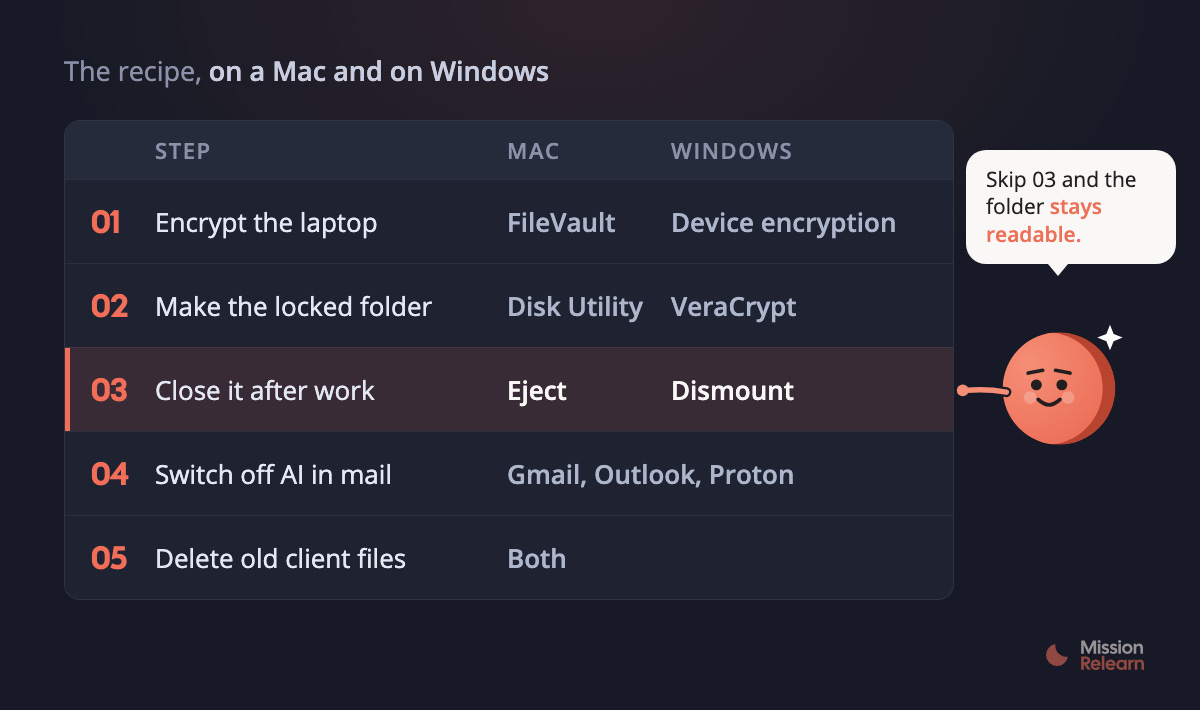
On a Mac, open Disk Utility and choose File > New Image > Blank Image. Give it a name, pick 256-bit AES encryption and ‘sparse bundle disk image’ as the format, and store the password in your password manager. Save it outside any folder that syncs to the cloud, and outside Downloads. Double-click the file to open it, and leave the option to remember the password in your keychain unticked. When you're done, click the eject arrow next to it in the Finder sidebar.
On Windows, the free tool VeraCrypt does the same job, with Home and Pro versions. Choose Create Volume, then ‘Create an encrypted file container’, pick a place and a size, and set the password. To use it, select the file, pick a drive letter and click Mount. When you're done, click Dismount.
Close it as soon as you're done: while it's open, your AI tools can see it too.
Last, go through your laptop and delete the files from that client that you no longer need.
Has a client ever asked you to keep AI away from their work? Reply to this mail with how you handled it, or with the files you'd lock away first.
What I read this week
Tasks, Eval Academy. A short lesson from Lovable on checking the work of an AI agent with small jobs you can actually grade.
Raise the ceiling, Katie Dill (Stripe) at the Lenny & Friends Summit. How to scale intent, quality and artistry with AI.
Town. A personal AI assistant that manages your inbox and schedules your meetings in the background.
Peter Yang's new AI course. The AI skills and workflows he uses to run his work and life, to copy.
Button Box. A screen-free box with one big button that lets young kids send WhatsApp voice notes to family.